
YABANDPAY · DOCUMENTATION
Payment Orders
View payment orders, payment statuses, and details, generate payment links, or request refunds.
All payment orders, including paid, processing, and unpaid orders, appear on this page.
Tip
Note that orders paid by card through a POS terminal, such as Visa, MasterCard, or UnionPay, appear in the “POS” section.
QR code payments initiated through a POS terminal, such as WeChat Pay or Alipay, still appear on this page.
1. Order List
On the Payment Orders page, you can filter orders using various criteria and export the results as an Excel or CSV file.
The main fields are:
- Date: The date the order was created.
- Order amount: The sale price, or listed price.
- Payment method: The payment method used to process the order.
- Order ID/Description: The order ID and description.
- Store/Cashier: The store and cashier account receiving the payment.
- Status: The current order status.
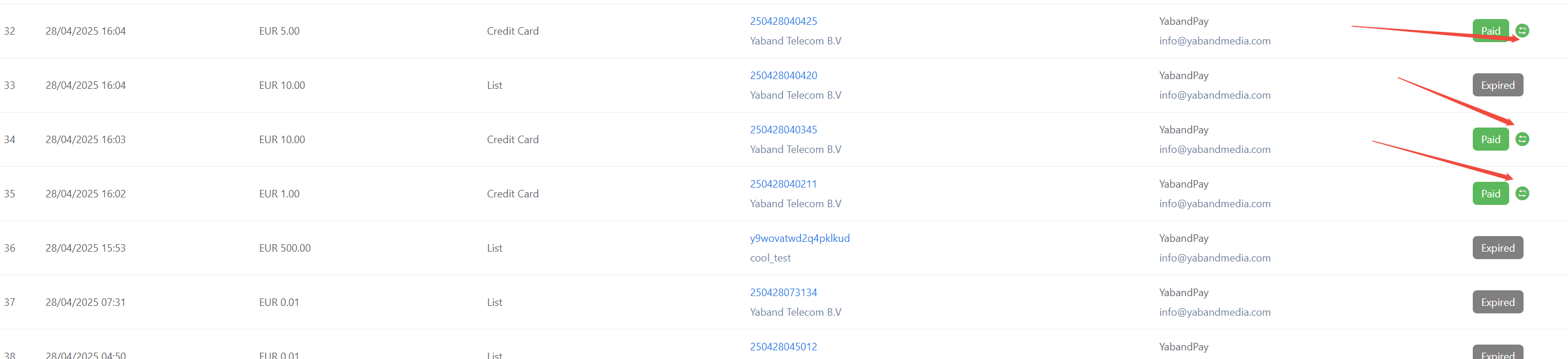
The following icon indicates that a refund has been made. View the order details for more information.
2. Order Statuses
An order is considered successfully paid only when its status is Paid. All other statuses indicate that payment has not yet been made or has not yet been completed.
| Status | Description |
|---|---|
| Paid | The order has been successfully paid. |
| Processing | Waiting for the customer to complete payment. |
| Cancelled | The customer has not paid, and the order has been cancelled. |
| Expired | The customer has not paid, and the order has expired. |
| Verify | The customer has paid, and the order is undergoing a risk review. |
Tip
About the “Verify” status
The review is usually completed within one business day.
- If the order does not pass the review, its status changes to Cancelled, and the system refunds the payment to the original payment method.
- If the order passes the review, its status changes to Paid.
3. Order Details
Double-click any order to open its details and view the complete transaction information, including:
- Date created: The time the order was created.
- Date completed: The time the order was last updated.
- Gross amount: The order amount in the settlement currency. If the order currency and settlement currency are the same, the amounts are the same. Note: The initial amount for credit card orders is 0. The accurate amount is displayed on the day after clearing is completed.
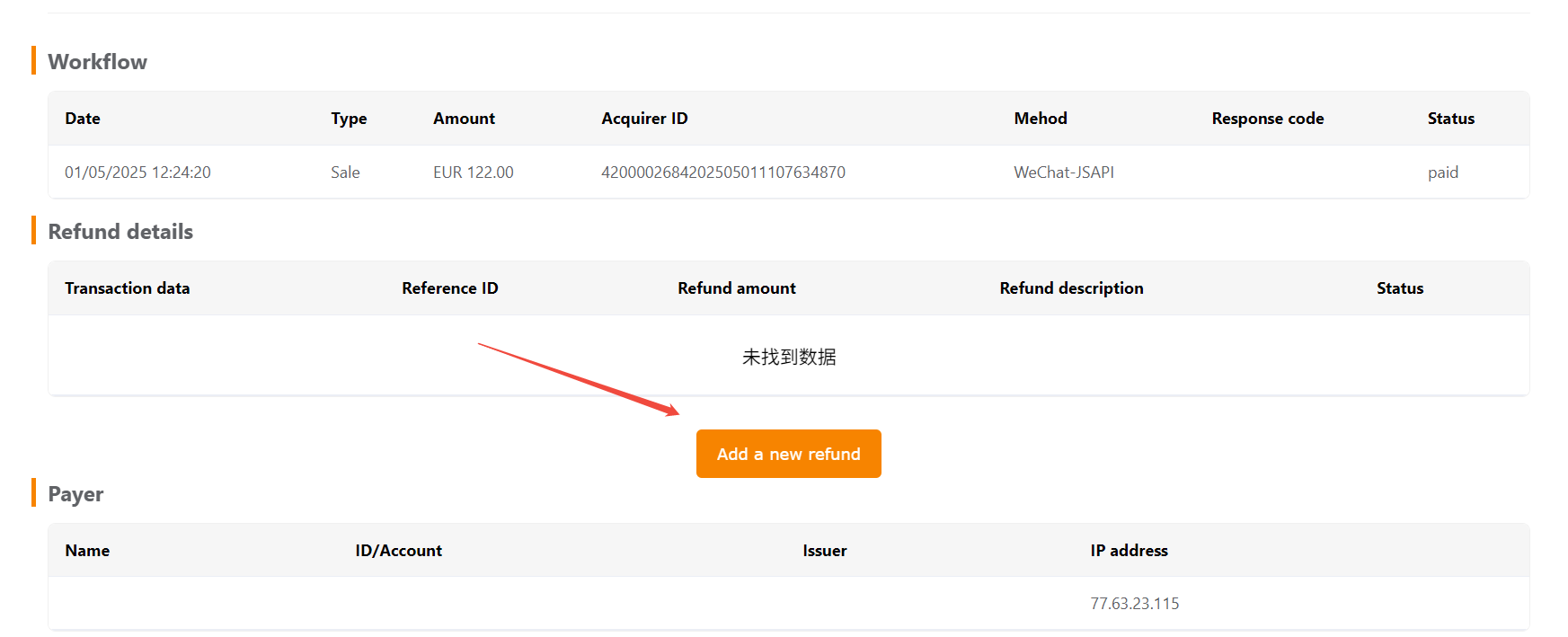
- Workflow: A record of actions performed on the order.
- Refund details: Refund information.
- Payer: Payer information.
- Card details: Card information is displayed for bank card payments, such as Visa, MasterCard, or UnionPay.
- Device informatoon: Information about the relevant device.
You can perform the following actions on the order details page:
- Generate a new payment link for an order with a “Processing” status so that the customer can pay again.
- Download the order details as a PDF file.
- Initiate a refund request.
4. Filters, fees and transaction notifications
Filter payment orders by date, currency, status, payment method, order ID, order amount and description, and download the results as an Excel or CSV file.
Order fees are not shown on the payment orders page. To view fees or all successful transactions, open Finance > Transaction Details.
To receive notifications for each successful payment or refund, open Settings > Notification Settings and enter the recipient email address under payment transaction notifications.