
YABANDPAY · DOCUMENTATION
Cashier Accounts
Manage store cashiers, refund permissions, static QR codes, Secret Keys, and IP whitelists.
In the YabandPay merchant portal, you can add, remove, and manage cashier accounts for each store to handle everyday transactions, such as managing orders and processing refunds. Configurable permissions and security controls help merchants assign account responsibilities and manage risk.
1. Managing Cashier Accounts
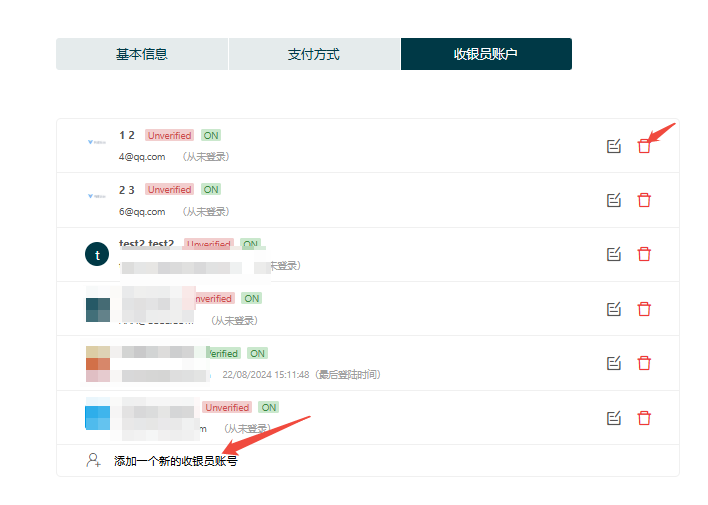
On the “Cashier Accounts” page, you can add, delete, and manage cashier accounts for the current store for day-to-day payment collection and permission assignment.
Adding a Cashier Account
Click “Add a New Cashier Account” at the bottom of the page and enter the required information to create a new cashier account for the current store.
Removing a Cashier Account
To remove a cashier, click the red Delete button to the right of the account.
Tip
Note: Deletion cannot be undone. Confirm that the account is no longer in use before deleting it.
Basic Information
Pay particular attention to the following settings:
| Field | Description |
|---|---|
| Store Manager | When enabled, the account can view and manage all transaction records for the entire store. When disabled, it can view only its own transactions. |
| Refund Permission | Immediately: Refunds are executed immediately after submission, without approval.Approved: Refunds require an additional approval after submission before they can be executed.Disabled: The account cannot submit refund requests. |
2. Static QR Code
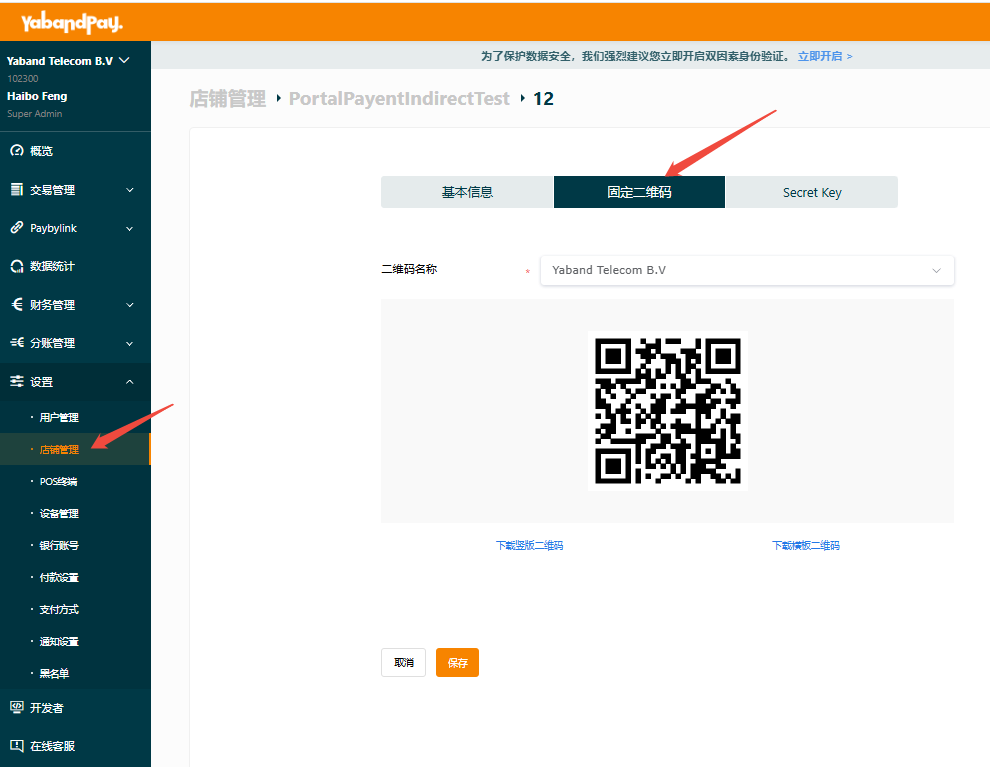
Each cashier account has a unique static QR code for quick payment collection. Customers can scan the code, enter the payment amount and an optional remark, and complete the payment.
To obtain a static QR code:
- Go to “Settings” > “Store Management”.
- Select the store and click “Cashier Accounts”.
- Find the cashier and click “Static QR Code”.
- Select the name of the QR code you want and download it.
2. Secret Key
The Secret Key is an important authentication credential for system API calls and a core security mechanism for data exchange and system operations.
- Go to “Settings” > “Store Management”.
- Select the store and click “Cashier Accounts”.
- Find the cashier and click “Secret Key”.
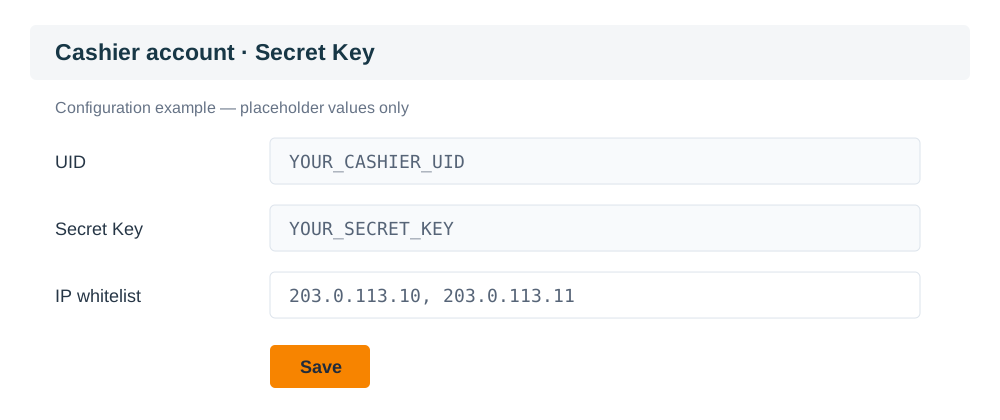
This illustration uses placeholder UID and Secret Key values only.
Tip
Precautions:
Keep your Secret Key secure and do not disclose it to unauthorized people. An exposed Secret Key may lead to account misuse.
Where possible, disable the cashier’s refund function or require an additional approval before execution to reduce the potential risk of refunds initiated directly through API calls.
To change a Secret Key, you must reset it through the platform.
IP Whitelist
To further secure API calls, YabandPay allows merchants to configure an IP whitelist. Once enabled, only requests from specified IP addresses can access the merchant API, helping prevent unauthorized access and misuse.
Setup steps:
- Find the “IP Whitelist” field at the bottom of the “Secret Key” page.
- Enter the IP addresses of the servers you want to allow to access the API. Separate multiple addresses with a comma
,.
- Click Save. The settings take effect immediately.