YABANDPAY · DOCUMENTATION
Store Management
Maintain store information, order currencies, payment methods, and cashier permissions.
Use Store Management to view and maintain information about your physical stores or online stores, including basic information, available payment methods, supported order currencies, and cashier account settings and permissions.
Tip
To add a store, contact the YabandPay customer support team to apply and have it enabled.
1. Accessing Store Management
In the merchant portal, go to “Settings” > “Store Management” to view all currently enabled stores.
Click a store name to open its details. Use the tabs at the top of the page to view and manage:
- Basic Information: View and edit core information such as the store name, address, and order currencies.
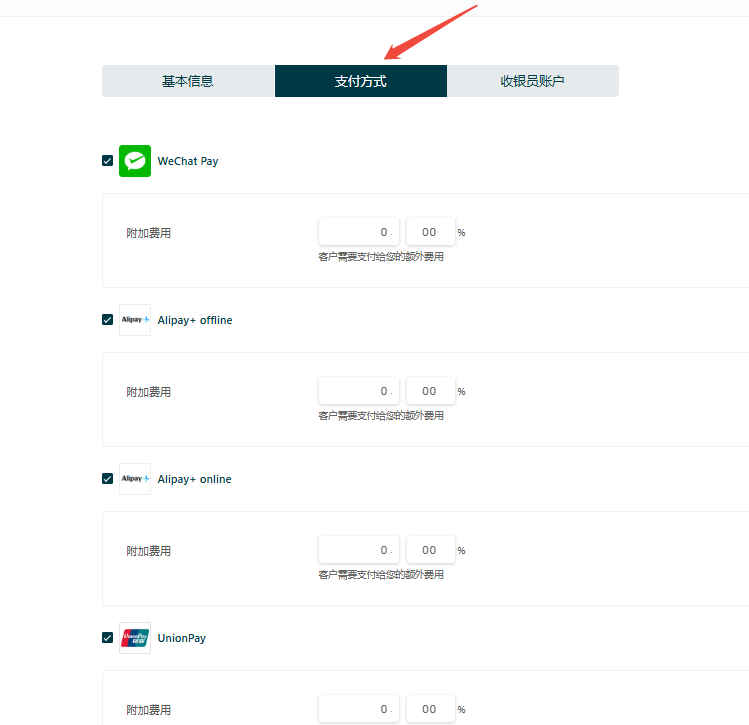
- Payment Methods: Configure the payment channels supported by the store, such as Visa, iDEAL, and Apple Pay.
- Cashier Accounts: Manage the store’s operator accounts and refund permissions.
Tip
Ensure that store information is complete and accurate so that transactions can be processed normally and compliance requirements can be met.
2. Basic Information Settings
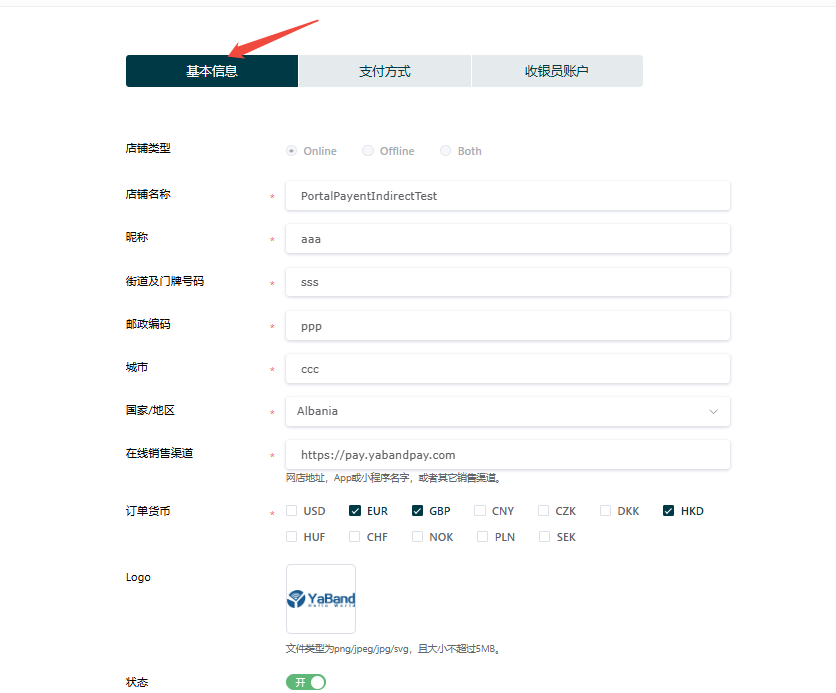
When you open a store’s details, the “Basic Information” tab is displayed by default. You can view or edit:
| Field | Description |
|---|---|
| Store Type | Select the business format supported by the store: Online, Offline, or Both (online and offline). |
| Store Name | The name used by the merchant to identify the store internally. |
| Nickname | A custom display name used for display or internal identification, or shown on the payer’s statement. |
| Address Information | Street and house number, postal code, city, and country/region. |
| Online Sales Channels | Enter links to online sales channels, such as the online store address, app homepage, or mini-program path. |
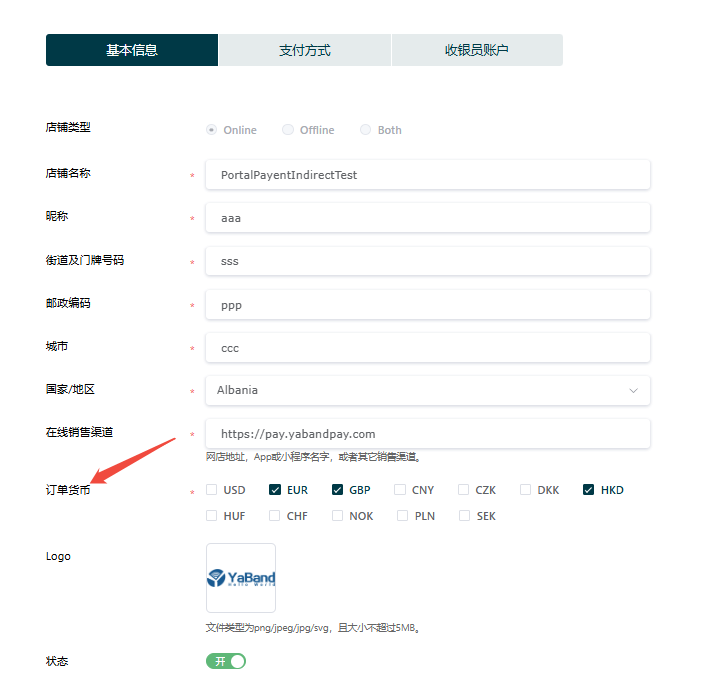
| Order Currency | The order currencies supported by the store; multiple selections are allowed. |
| Logo | The brand logo shown on the hosted payment page. Upload png/jpg/svg files up to 5MB. |
| Status | Switch to enable or disable the store; green indicates enabled. |
3. Order Currencies
You can configure and manage the order currencies supported by the store.
What Is an Order Currency?
An order currency is the currency a customer uses when placing and paying for an order, such as EUR, USD, or HKD.
Tip
Note: The order currency is not the settlement currency.
The settlement currency is agreed in advance between the merchant and YabandPay in their agreement and cannot be changed through the merchant portal.
Setting Order Currencies
- Log in to the merchant portal and go to “Settings” > “Store Management”.
- Select the store you want to configure and open the “Basic Information” tab.
- Under “Order Currency”, select the currencies you want to support; multiple selections are allowed.
- Click “Save” at the bottom of the page to complete the setup.
- Once the settings take effect, customers can view and select the supported order currencies at checkout.
Tip
Select currencies that match your customers’ countries or regions to improve payment success rates and the user experience.
4. Payment Method Settings
In the YabandPay merchant portal, you can configure supported payment methods separately for each store. Major channels such as Visa, Mastercard, WeChat Pay, Alipay, Apple Pay, and iDEAL are supported and can be enabled or disabled as needed.
Navigation
- Click “Settings” > “Store Management” in the left navigation menu.
- In the store list, click the store you want to configure.
- Open the “Payment Methods” tab at the top of the page.
Configuration Steps
1. Enable Payment Methods
- In the payment method list, select the channels you want to enable for the store.
- You can enable multiple methods. The system will display suitable options for the customer’s device.
- To add a surcharge to selected channels, enter a fixed amount or percentage, such as 1.5%, in the relevant field.
2. Save Settings
- Confirm the configuration and click “Save” at the bottom of the page.
- The settings take effect immediately, and enabled payment channels will appear on the customer’s payment page.
Tip
Appropriate payment method settings help improve payment success rates and the customer experience. Prioritize methods commonly used in your target market.