YABANDPAY · DOCUMENTATION
Filialverwaltung
Pflegen Sie Filialinformationen, Bestellwährungen, Zahlungsmethoden und Kassiererberechtigungen.
Verwenden Sie die Filialverwaltung, um Informationen zu Ihren stationären oder Online-Filialen einzusehen und zu pflegen, darunter Stammdaten, verfügbare Zahlungsmethoden, unterstützte Bestellwährungen sowie Einstellungen und Berechtigungen der Kassiererkonten.
Tipp
Um eine Filiale hinzuzufügen, wenden Sie sich an den YabandPay-Kundensupport und beantragen Sie deren Freischaltung.
1. Accessing Filialverwaltung
Gehen Sie im Händlerportal zu „Einstellungen“ > „Filialverwaltung“, um alle derzeit aktivierten Filialen anzuzeigen.
Klicken Sie auf einen Filialnamen, um die Details zu öffnen. Über die Registerkarten oben auf der Seite können Sie Folgendes anzeigen und verwalten:
- Grundlegende Informationen: Zeigen und bearbeiten Sie grundlegende Angaben wie Filialname, Adresse und Bestellwährungen.
- Zahlungsmethoden: Konfigurieren Sie die von der Filiale unterstützten Zahlungskanäle, zum Beispiel Visa, iDEAL und Apple Pay.
- Kassiererkonten: Verwalten Sie die Operator accounts und Rückerstattungsberechtigungen der Filiale.
Tipp
Achten Sie darauf, dass die Filialinformationen vollständig und korrekt sind, damit Transaktionen ordnungsgemäß verarbeitet und Compliance-Anforderungen erfüllt werden.
2. Grundlegende Informationen Einstellungen
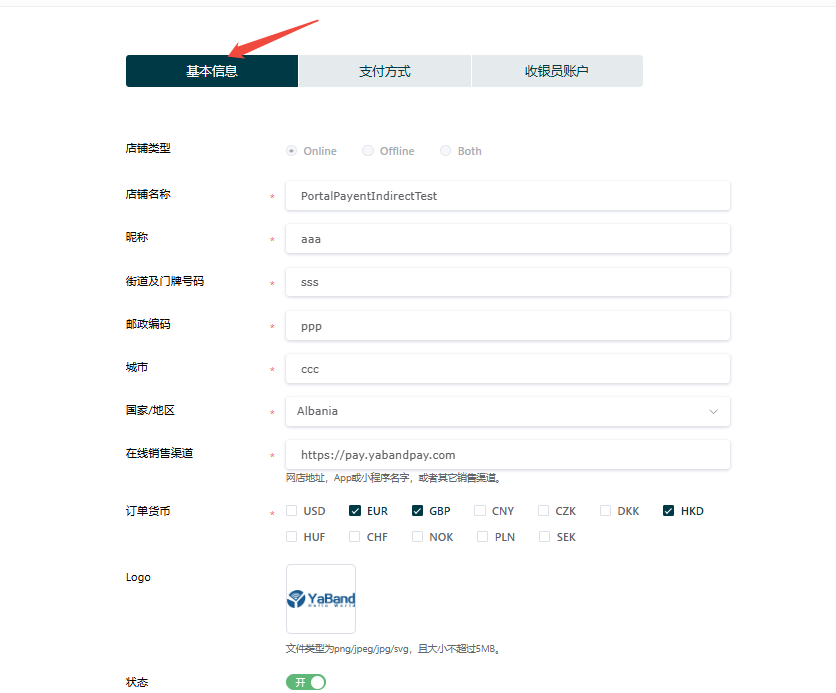
When you open a store’s details, the “Grundlegende Informationen” tab is displayed by default. You can view or edit:
| Feld | Beschreibung |
|---|---|
| Store Type | Select the business format supported by the store: Online, Offline, or Both (online and offline). |
| Store Name | The name used by the merchant to identify the store internally. |
| Nickname | A custom display name used for display or internal identification, or shown on the payer’s statement. |
| Address Information | Street and house number, postal code, city, and country/region. |
| Online Sales Channels | Enter links to online sales channels, such as the online store address, app homepage, or mini-program path. |
| Order Currency | The order currencies supported by the store; multiple selections are allowed. |
| Logo | The brand logo shown on the hosted payment page. Upload png/jpg/svg files up to 5MB. |
| Status | Switch to enable or disable the store; green indicates enabled. |
3. Bestellwährungen
You can configure and manage the order currencies supported by the store.
What Is an Bestellwährung?
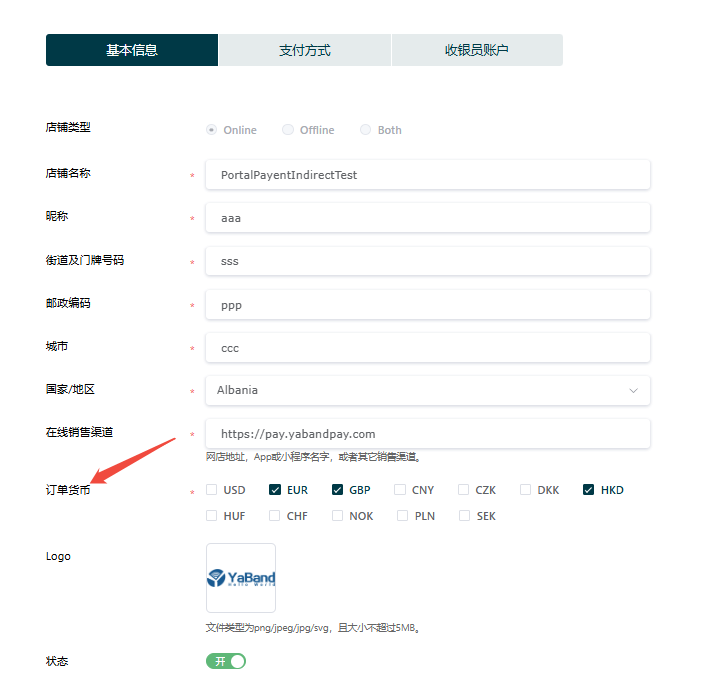
An order currency is the currency a customer uses when placing and paying for an order, such as EUR, USD, or HKD.
Tipp
Note: The order currency is not the settlement currency.
The settlement currency is agreed in advance between the merchant and YabandPay in their agreement and cannot be changed through the merchant portal.
Setting Bestellwährungen
- Log in to the merchant portal and go to “Einstellungen” > “Filialverwaltung”.
- Select the store you want to configure and open the “Grundlegende Informationen” tab.
- Under “Bestellwährung”, select the currencies you want to support; multiple selections are allowed.
- Click “Speichern” at the bottom of the page to complete the setup.
- Once the settings take effect, customers can view and select the supported order currencies at checkout.
Tipp
Select currencies that match your customers’ countries or regions to improve payment success rates and the user experience.
4. Payment Method Einstellungen
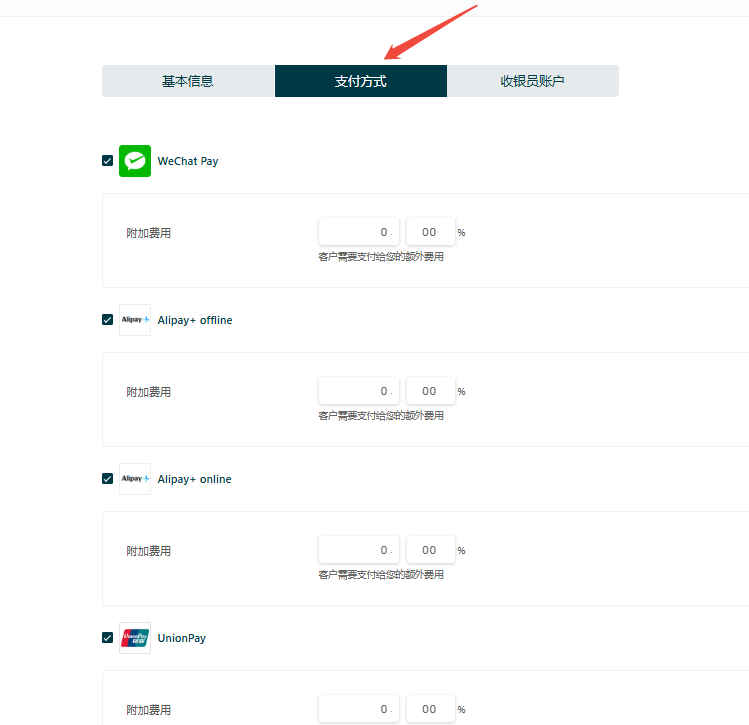
In the YabandPay merchant portal, you can configure supported payment methods separately for each store. Major channels such as Visa, Mastercard, WeChat Pay, Alipay, Apple Pay, and iDEAL are supported and can be enabled or disabled as needed.
Navigation
- Click “Einstellungen” > “Filialverwaltung” in the left navigation menu.
- In the store list, click the store you want to configure.
- Open the “Zahlungsmethoden” tab at the top of the page.
Konfigurationsschritte
1. Enable Zahlungsmethoden
- In the payment method list, select the channels you want to enable for the store.
- You can enable multiple methods. The system will display suitable options for the customer’s device.
- To add a surcharge to selected channels, enter a fixed amount or percentage, such as 1.5%, in the relevant field.
2. Speichern Einstellungen
- Bestätigen the configuration and click “Speichern” at the bottom of the page.
- The settings take effect immediately, and enabled payment channels will appear on the customer’s payment page.
Tipp
Appropriate payment method settings help improve payment success rates and the customer experience. Prioritize methods commonly used in your target market.