
YABANDPAY · DOCUMENTATION
QR-Code-Zahlungen
Nehmen Sie Zahlungen mit statischen oder dynamischen QR-Codes und der YabandPay-App an und sehen Sie Transaktionen sowie Statistiken ein.
1. Zahlungen mit statischem QR-Code
Jedes Kassiererkonto verfügt über einen statischen QR-Code. Der Kunde scannt ihn, gibt den Zahlungsbetrag und optional eine Beschreibung ein und schließt die Zahlung ab.
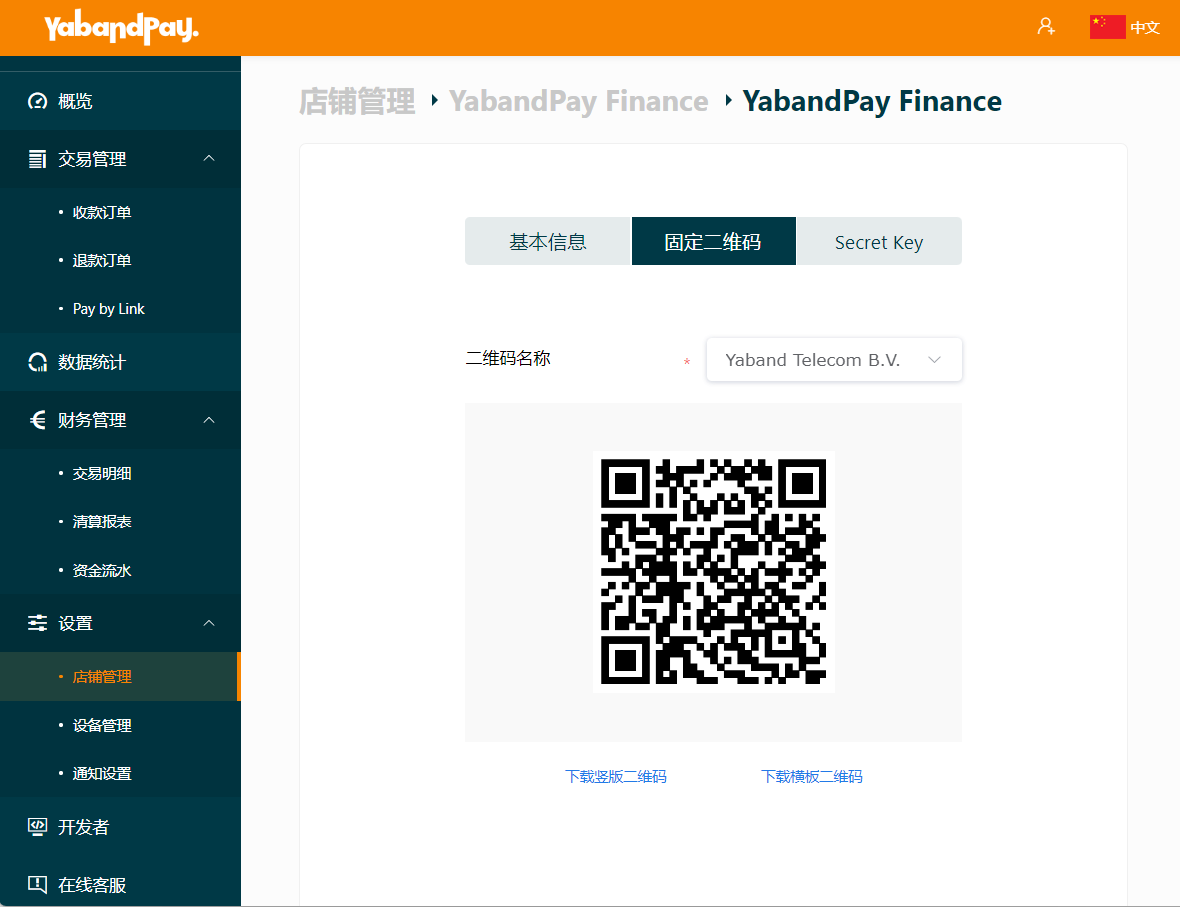
So laden Sie einen statischen QR-Code herunter:
- Wählen Sie Einstellungen > Filialverwaltung.
- Öffnen Sie das Kassiererkonto und wählen Sie Statischer QR-Code.
- Wählen Sie den Namen aus, der auf dem QR-Code angezeigt werden soll, zum Beispiel den Unternehmens- oder Filialnamen.
- Laden Sie den QR-Code herunter.
Sie können einen statischen QR-Code auch in der YabandPay-App herunterladen. Öffnen Sie die App, wählen Sie unten Ich und rufen Sie den statischen QR-Code auf. For more information about the App, see the dynamischer QR-Code section below.
Bei Zahlung über einen statischen QR-Code muss der Kunde den Zahlungsbetrag eingeben.
2. Zahlungen mit dynamischem QR-Code
Im Vergleich zu einem statischen QR-Code ist ein dynamischer QR-Code für den Kunden einfacher zu verwenden, da er bereits Bestellinformationen wie Betrag, Bestellnummer und Beschreibung enthält. Außerdem vereinfacht er die Bestellverwaltung für den Händler.
Um Zahlungen mit dynamischem QR-Code anzunehmen, verwenden Sie „Per Link bezahlen“ oder suchen und laden Sie die YabandPay-App im App Store oder bei Google Play herunter.
Open the YabandPay App, enter your email address and password, and select Log in. If you have forgotten your password, select Forgot password to reset it.
The same YabandPay account can be logged in on multiple devices at the same time.
Accept a payment with a dynamischer QR-Code in the App
- On the home screen, enter the amount to collect.
- Tap the default currency, EUR, to change it. Other currencies are available only after you add additional order currencies. See the order currency section for configuration instructions.
- Enter an order description, if needed.
- Select Scan QR Code to scan the customer’s WeChat Pay or Alipay payment code, or select Generate QR Code to obtain a unique payment code to send to your customer.
View transactions in the App
- Select Details at the bottom left of the home screen to view all transactions, including unpaid, processing, paid and refunded transactions.
- Under Details > Bezahlt / Refunded, you can view paid and refunded transactions separately.
- Use the search bar at the top to find transactions by transaction ID, order ID, description or amount. For a paid transaction, open the payment details to issue a refund.
- For a processing transaction, open its payment details to find the payment QR code and resend it to your customer.
View statistics in the App
Select Statistiken at the bottom right to view transaction statistics by day, week, month or a custom date range.