
YABANDPAY · DOCUMENTATION
QR Code Payments
Accept payments with static or dynamic QR codes and the YabandPay App, and view transactions and statistics.
1. Static QR code payments
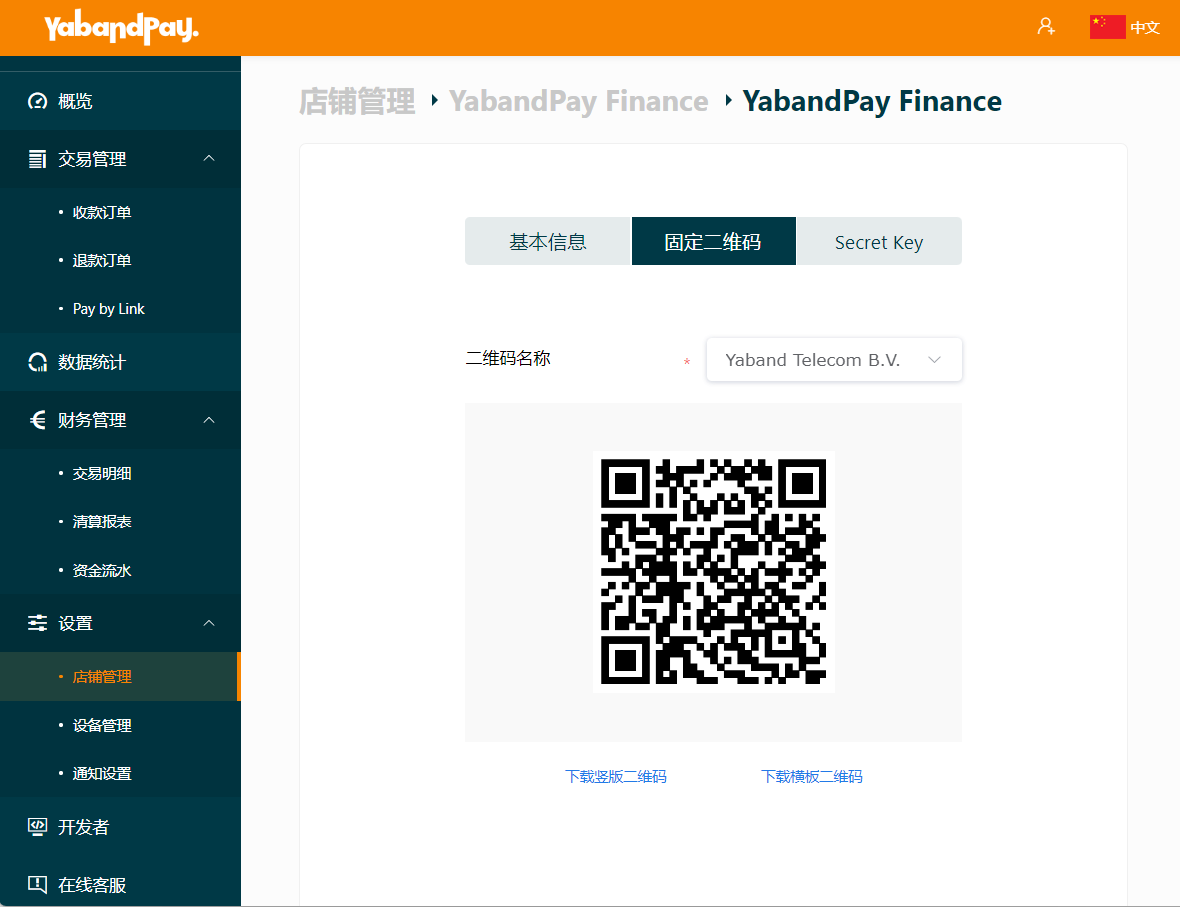
Each cashier account has a static QR code. The customer scans it, enters the payment amount and an optional description, and completes payment.
To download a static QR code:
- Select Settings > Store Management.
- Open the cashier account and select Static QR Code.
- Choose the name shown on the QR code, such as your company or store name.
- Download the QR code.
You can also download a static QR code in the YabandPay App. Open the App, select Me at the bottom and view the static QR code. For more information about the App, see the dynamic QR code section below.
When paying through a static QR code, the customer must enter the payment amount.
2. Dynamic QR code payments
Compared with a static QR code, a dynamic QR code is easier for the customer to use because it already includes order information such as the amount, order number and description. It also makes order management easier for the merchant.
To accept dynamic QR code payments, use Pay by Link or search for and download the YabandPay App from the App Store or Google Play.
Open the YabandPay App, enter your email address and password, and select Log in. If you have forgotten your password, select Forgot password to reset it.
The same YabandPay account can be logged in on multiple devices at the same time.
Accept a payment with a dynamic QR code in the App
- On the home screen, enter the amount to collect.
- Tap the default currency, EUR, to change it. Other currencies are available only after you add additional order currencies. See the order currency section for configuration instructions.
- Enter an order description, if needed.
- Select Scan QR Code to scan the customer’s WeChat Pay or Alipay payment code, or select Generate QR Code to obtain a unique payment code to send to your customer.
View transactions in the App
- Select Details at the bottom left of the home screen to view all transactions, including unpaid, processing, paid and refunded transactions.
- Under Details > Paid / Refunded, you can view paid and refunded transactions separately.
- Use the search bar at the top to find transactions by transaction ID, order ID, description or amount. For a paid transaction, open the payment details to issue a refund.
- For a processing transaction, open its payment details to find the payment QR code and resend it to your customer.
View statistics in the App
Select Statistics at the bottom right to view transaction statistics by day, week, month or a custom date range.