
YABANDPAY · DOCUMENTATION
User Management
Create or invite members, edit permissions and member information, or remove access to the organization.
In the YabandPay merchant portal, you can manage all members authorized to access the merchant account, including adding members, inviting external users, editing permissions, and removing members. This feature supports team collaboration and access management while helping ensure system security and consistent operations.
1. Add a Member
Use “Add a member” to directly create a new member who can operate the portal.
Steps
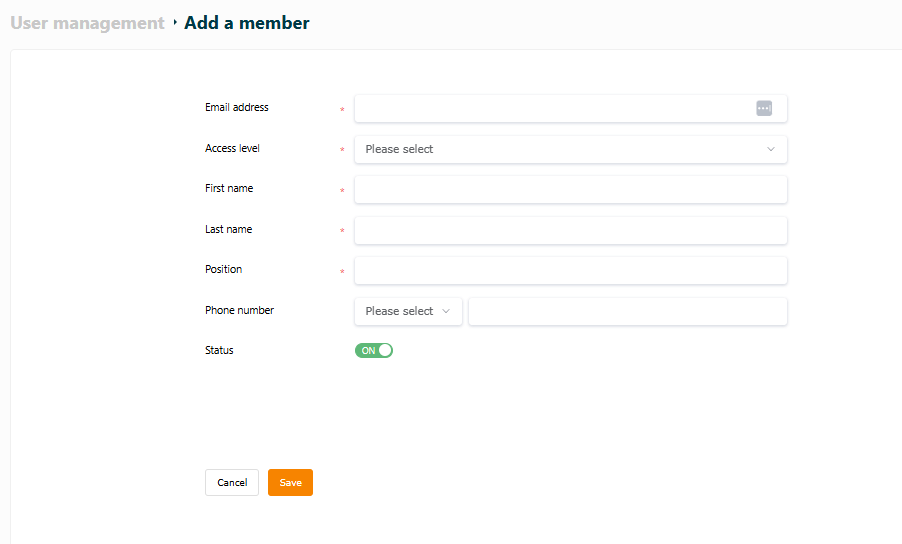
- In the portal, click “User Management” > “Add a member” in the left-hand menu to open the new member form.
- Enter the following information:
- Email address*
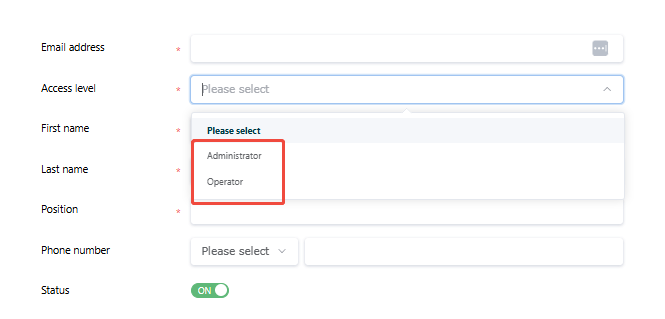
- Access level*
- First name*
- Last name
- Position*
- Phone number
- Status (enabled or disabled)
- Click “Save” to add the member. The member’s account will be activated immediately.
Tip
Note: Access Level options typically include Operator and Admin. Higher access levels provide access to more features.
2. Invite a User
Use “Invite a user” to invite a user who already has a YabandPay account to join your merchant organization.
Steps
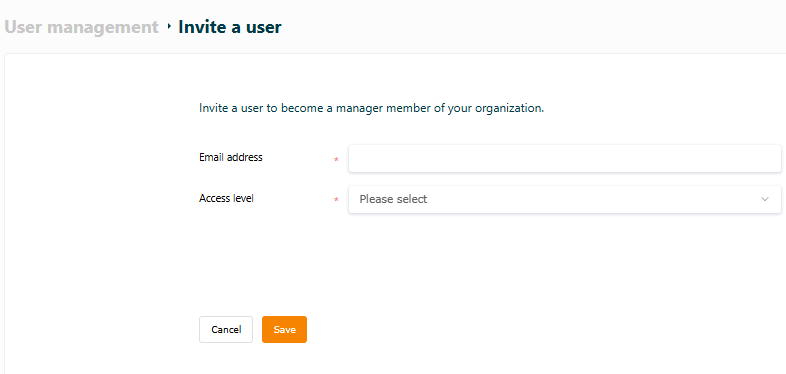
- Go to “User Management” > “Invite a user”.
- On the “invite a user” page, enter:
- Email address (the invited user’s email address)*
- Access level (permissions to grant)*
- Click “Save”. The user will receive an invitation email and can join your organization by accepting the invitation.
3. Edit and Delete Members
You can adjust permissions, update information, or delete accounts for existing members.
Edit Member Information
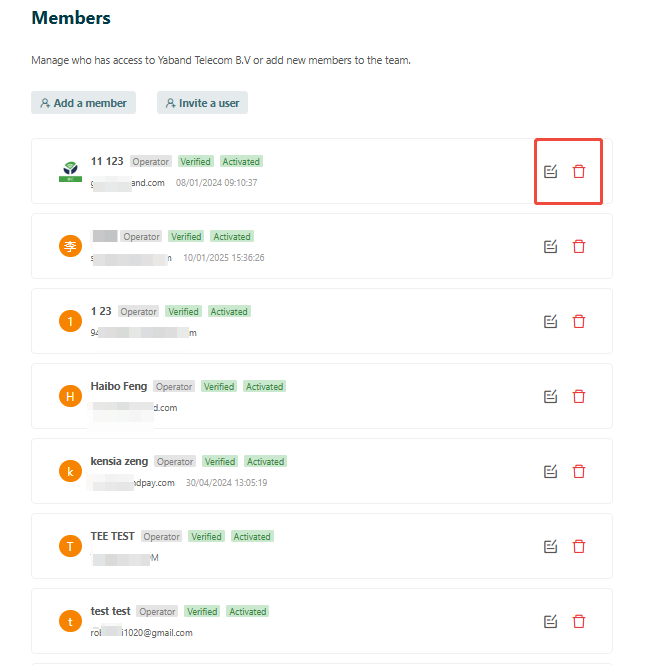
- Find the target user in the member list.
- Click the Edit button on the right of the corresponding row to open the edit page.
- Change the required fields, such as permissions, position, and contact details.
- Click “Save” to save the changes.
Delete a Member Account
- Click the Delete icon on the right of the target user’s row.
- The system displays a deletion confirmation prompt.
- After confirmation, the member is removed from the current merchant organization and can no longer access portal resources.
Tip
Notes
Different Access Level settings provide different portal access permissions.
Deleted members immediately lose access to organization resources, and this action cannot be undone.
If a member has not been activated, check that their email address is correct or contact them to ask them to accept the invitation.