YABANDPAY · DOCUMENTATION
POS Terminals (Pos terminal)
View and configure POS terminals, including store assignments, transaction settings, and parameter download requirements.
YabandPay supports integrated POS terminals for in-person payments in retail, hospitality, services, and other settings. Merchants can centrally manage all terminals in the portal, view device status in real time, and configure parameters to keep payment acceptance stable, efficient, and manageable.
1. View and Manage POS Terminals
View Devices
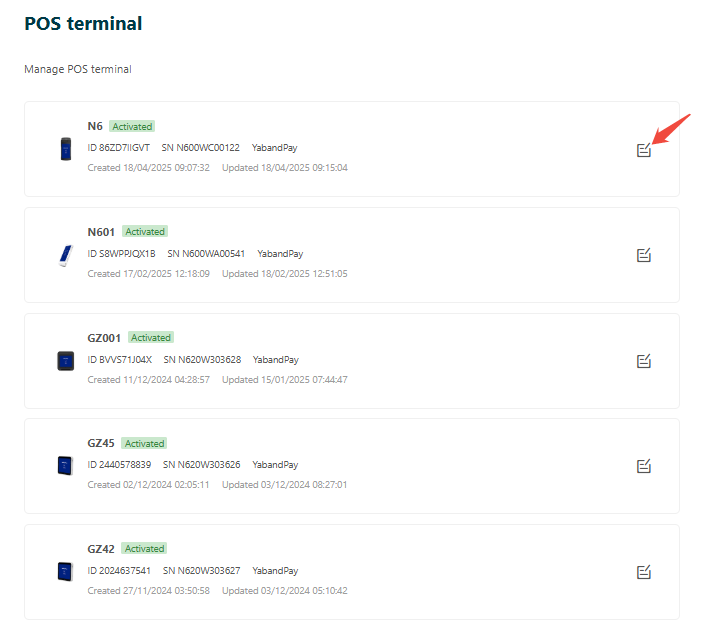
- Log in to the merchant portal and click “Settings” > “POS Terminals” in the left-hand menu.
- The page displays information for all registered POS devices, including:
- Terminal ID
- Type
- Serial Number
- Activation Status
Edit Devices
Click “Edit” to the right of a device to open its details page and configure its parameters. Configuration options include, but are not limited to:
| Setting | Description |
|---|---|
| Terminal Type/Model | The device’s hardware model, such as N86. |
| Terminal Name/Serial Number | A merchant-defined name and the hardware serial number. |
| Assigned Store/Cashier Account | Select the merchant store and Cashier account assigned to the terminal. |
| GSA Configuration | Communication parameters, including Profile and GSA Port. |
| Theme/Interface Color | A choice of white or blue theme. |
| Input Keyboard Type | Software keyboard / hardware keyboard. |
| PIN Protection | Whether to enable screensaver password protection, with support for a custom password or PIN verification. |
| Auto-Start App | Whether to launch the payment acceptance app automatically after startup. |
| Transaction Parameters | Enabled transaction types, such as Sale, Preauth, Refund, and CNP. |
| Payment Methods | Supported payment card types and methods, such as Visa, Mastercard, Maestro, and QR codes. |
| Settlement Currency | Available settlement currencies, such as EUR, GBP, and HKD. |
| Print Configuration | Whether to enable printing of receipts, settlement reports, and other documents. |
| Status Toggle | Controls whether the terminal is enabled or disabled. |
2. Manage Other Devices
In addition to the POS Terminals module, you can view and manage all registered devices, including non-POS devices, under “Settings” > “Device Management”. On that page, you can:
- Add new devices.
- Add, edit, or delete individual devices.
- View device enabled status and operating permissions.
Tip
Notes
Each POS terminal must be assigned to a store and a Cashier account. This Cashier account is generated automatically and is used only for POS transactions.
After changing terminal parameters, you must download the parameters again on the POS terminal for the changes to take effect.