
YABANDPAY · DOCUMENTATION
Bank Account Management (Bank Account)
View the linked bank account, request changes, and review bank statement upload and approval requirements.
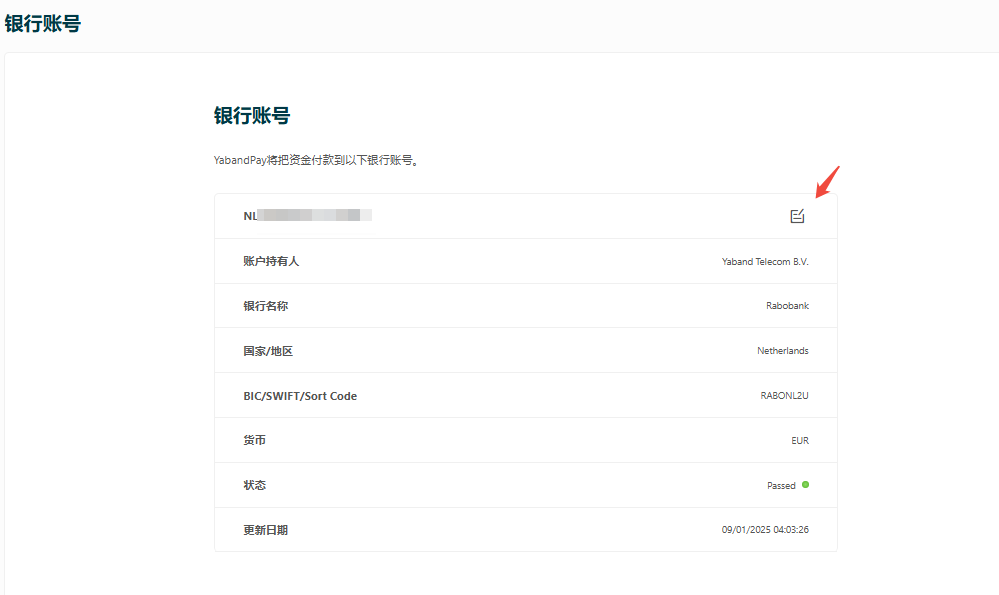
In the YabandPay merchant portal, each account can be linked to only one bank account, which is used to receive all settlement funds. You can view the currently linked bank account details and submit a change request when needed.
1. View Bank Account Details
- “Settings” > “Bank Account”
- You can view the following fields:
- IBAN/Account Number
- Account Holder
- Bank Name
- Country/Region
- BIC/SWIFT/Sort Code
- Currency
- Status (for example: Pending Review / Approved)
- Last Updated
2. Change Bank Account Details
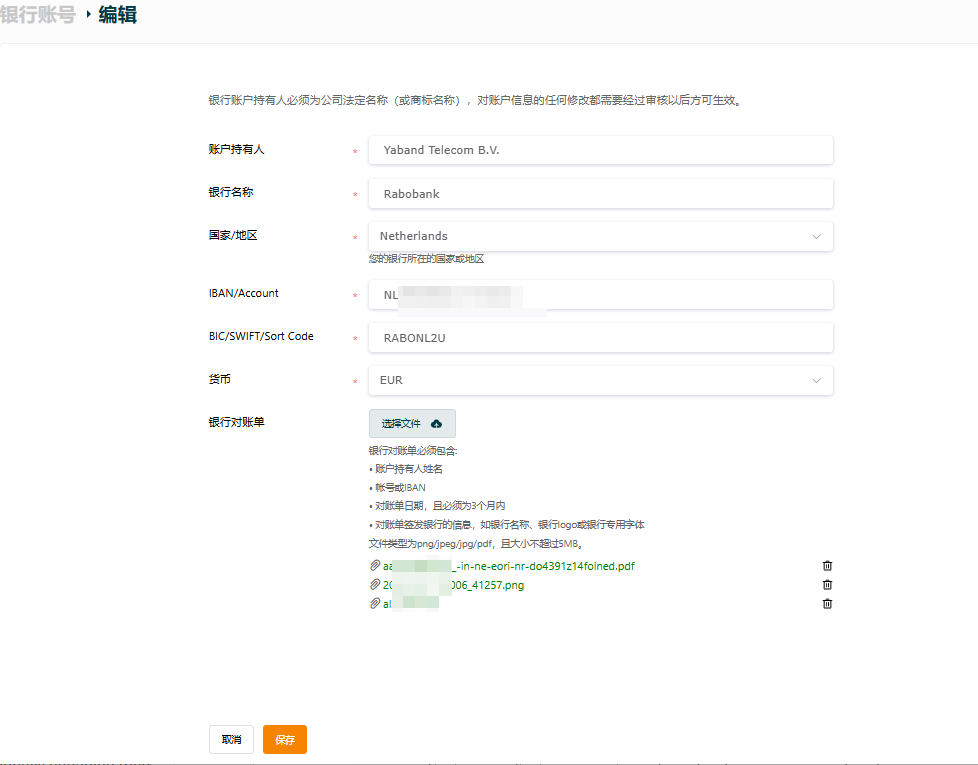
To change your bank account, click the icon (Edit button) in the upper-right corner to open the edit page, complete all bank details, and upload a bank statement.
Bank Statement Upload Requirements
You must upload a bank statement as verification material when submitting your request. The requirements are as follows:
- The file must include:
- The account holder’s name or company name
- The full IBAN
- The bank name and logo
- The statement must be dated within the last 3 months.
- Supported file formats:
.jpg,.png,.pdf; maximum size: 5MB.
Tip
All changes are subject to manual review and take effect only after approval. If the review is unsuccessful, the system will retain the original account details.
A YabandPay merchant account can be linked to only one bank account; switching between multiple bank accounts is not supported.
After the bank account is changed, all subsequent settlement payments will be transferred to the new account.
Ensure that the information you enter exactly matches your bank documents to avoid settlement failures.