
YABANDPAY · DOCUMENTATION
Kassiererkonten
Verwalten Sie Filialkassierer, Rückerstattungsberechtigungen, statische QR-Codes, Secret Keys und IP-Zulassungslisten.
Im YabandPay-Händlerportal können Sie für jede Filiale Kassiererkonten hinzufügen, entfernen und verwalten, um alltägliche Vorgänge wie Bestellverwaltung und Rückerstattungen abzuwickeln. Konfigurierbare Berechtigungen und Sicherheitskontrollen helfen Händlern, Zuständigkeiten festzulegen und Risiken zu steuern.
1. Managing Kassiererkonten
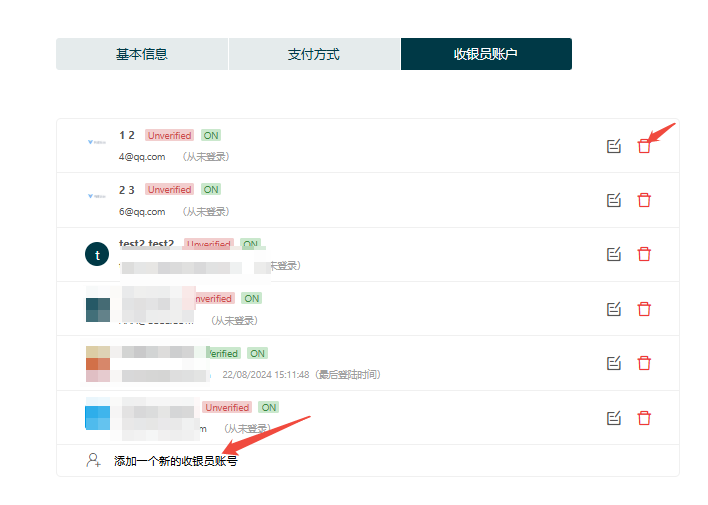
Auf der Seite „Kassiererkonten“ können Sie für die aktuelle Filiale Kassiererkonten zur täglichen Zahlungsannahme und Berechtigungszuweisung hinzufügen, löschen und verwalten.
Adding a Kassiererkonto
Klicken Sie unten auf der Seite auf „Neues Kassiererkonto hinzufügen“ und geben Sie die erforderlichen Angaben ein, um ein neues Kassiererkonto für die aktuelle Filiale zu erstellen.
Removing a Kassiererkonto
Um einen Kassierer zu entfernen, klicken Sie rechts neben dem Konto auf die rote Schaltfläche Löschen.
Tipp
Hinweis: Das Löschen kann nicht rückgängig gemacht werden. Vergewissern Sie sich vor dem Löschen, dass das Konto nicht mehr verwendet wird.
Grundlegende Informationen
Pay particular attention to the following settings:
| Feld | Beschreibung |
|---|---|
| Store Manager | When enabled, the account can view and manage all transaction records for the entire store. When disabled, it can view only its own transactions. |
| Refund Permission | Immediately: Rückerstattungen are executed immediately after submission, without approval.Genehmigt: Rückerstattungen require an additional approval after submission before they can be executed.Deaktiviert: The account cannot submit refund requests. |
2. Statischer QR-Code
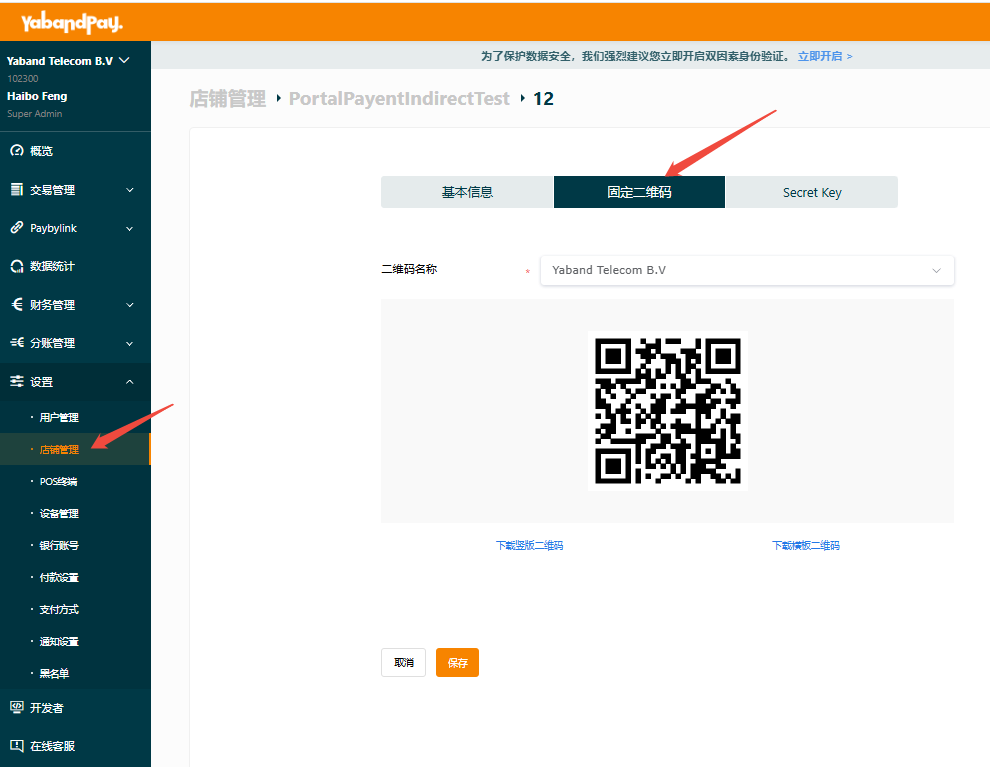
Each cashier account has a unique static QR code for quick payment collection. Customers can scan the code, enter the payment amount and an optional remark, and complete the payment.
To obtain a static QR code:
- Go to “Einstellungen” > “Filialverwaltung”.
- Select the store and click “Kassiererkonten”.
- Find the cashier and click “Statischer QR-Code”.
- Select the name of the QR code you want and download it.
2. Secret Key
The Secret Key is an important authentication credential for system API calls and a core security mechanism for data exchange and system operations.
- Go to “Einstellungen” > “Filialverwaltung”.
- Select the store and click “Kassiererkonten”.
- Find the cashier and click “Secret Key”.
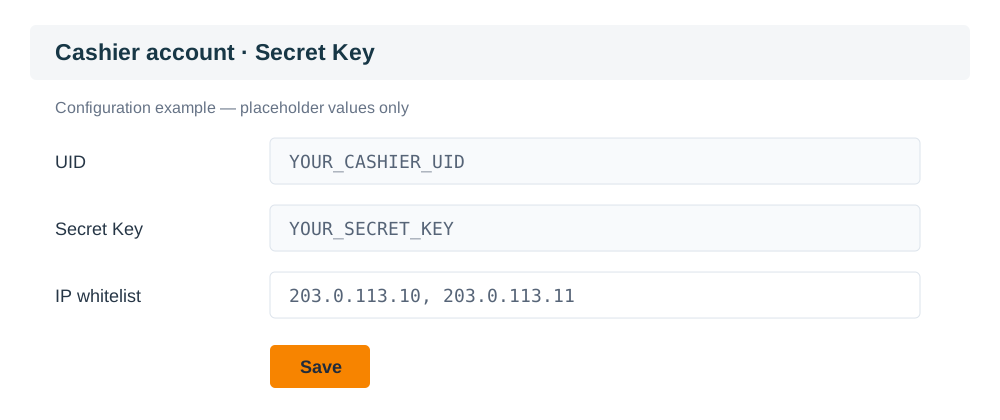
This illustration uses placeholder UID and Secret Key values only.
Tipp
Precautions:
Bewahren Sie Ihren Secret Key sicher auf und not disclose it to unauthorized people. An exposed Secret Key may lead to account misuse.
Where possible, disable the cashier’s refund function or require an additional approval before execution to reduce the potential risk of refunds initiated directly through API calls.
To change a Secret Key, you must reset it through the platform.
IP Whitelist
To further secure API calls, YabandPay allows merchants to configure an IP whitelist. Once enabled, only requests from specified IP addresses can access the merchant API, helping prevent unauthorized access and misuse.
Setup steps:
- Find the “IP Whitelist” field at the bottom of the “Secret Key” page.
- Enter the IP addresses of the servers you want to allow to access the API. Separate multiple addresses with a comma
,.
- Click Speichern. The settings take effect immediately.