YABANDPAY · DOCUMENTATION
POS-Terminals
Zeigen Sie POS-Kartenbestellungen, Status, Gerätedetails und Rückerstattungen an. QR-Code-Zahlungen werden unter „Zahlungsaufträge“ verwaltet.
Händler mit stationären Filialen können POS-Terminals für Zahlungen vor Ort verwenden. Alle POS-Aufträge werden in Echtzeit mit dem Händlerportal synchronisiert, damit sie zentral eingesehen, verwaltet und abgeglichen werden können. So wird jede POS-Terminaltransaktion korrekt erfasst und nachverfolgt.
Zahlungen per QR-Code, der auf einem POS-Terminal angezeigt wird, werden weiterhin unter „Zahlungsaufträge“ verwaltet.
1. Bestellliste
Auf der Seite für POS-Zahlungsaufträge können Sie Aufträge nach verschiedenen Kriterien filtern und die Ergebnisse als Excel- oder CSV-Datumi exportieren.
The main fields are:
- Datum: Zeitpunkt der Zahlung.
- Bestellbetrag: Verkaufspreis beziehungsweise angezeigter Preis.
- Bestell-ID/Beschreibung: Bestell-ID und Beschreibung.
- Filiale/Kassierer: Filiale und Kassiererkonto, bei denen die Zahlung eingeht.
- Termina ID: Eindeutige Kennung des POS-Terminals.
- Status: Aktueller Bestellstatus.
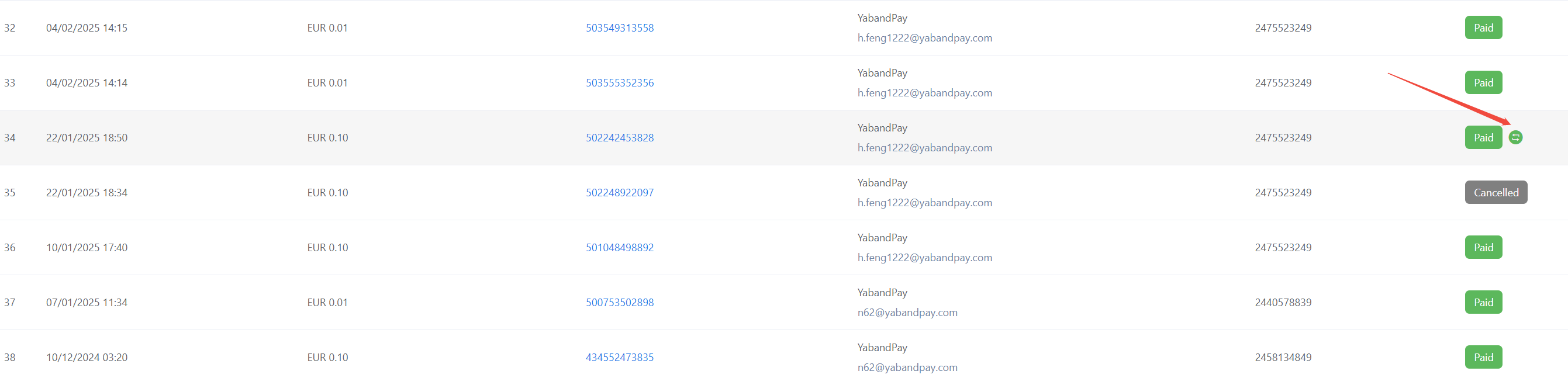
Das folgende Symbol zeigt an, dass eine Rückerstattung erfolgt ist. Weitere Informationen finden Sie in den Bestelldetails.
2. Bestellstatus
Eine Bestellung gilt nur dann als erfolgreich bezahlt, wenn ihr Status Paid lautet. Alle anderen Status zeigen an, dass die Zahlung noch nicht erfolgt ist oder has not yet been completed.
| Status | Beschreibung |
|---|---|
| Bezahlt | The order has been successfully paid. |
| In Bearbeitung | Waiting for the customer to complete payment. |
| Cancelled | The customer has not paid, and the order has been cancelled. |
| Expired | The customer has not paid, and the order has expired. |
| Verify | The customer has paid, and the order is undergoing a risk review. |
Tipp
About the “Verify” status: The review is usually completed within one business day.
- If the order does not pass the review, its status changes to Cancelled, and the system refunds the payment to the original payment method.
- If the order passes the review, its status changes to Bezahlt.
3. Order Details
Double-click any order to open its details and view the complete transaction information, including:
- Datum created: The time the order was created.
- Datum completed: The time the order was last updated.
- Gross amount: The order amount in the settlement currency. If the order currency and settlement currency are the same, the amounts are the same. Note: The initial amount for credit card orders is 0. The accurate amount is displayed on the day after clearing is completed.
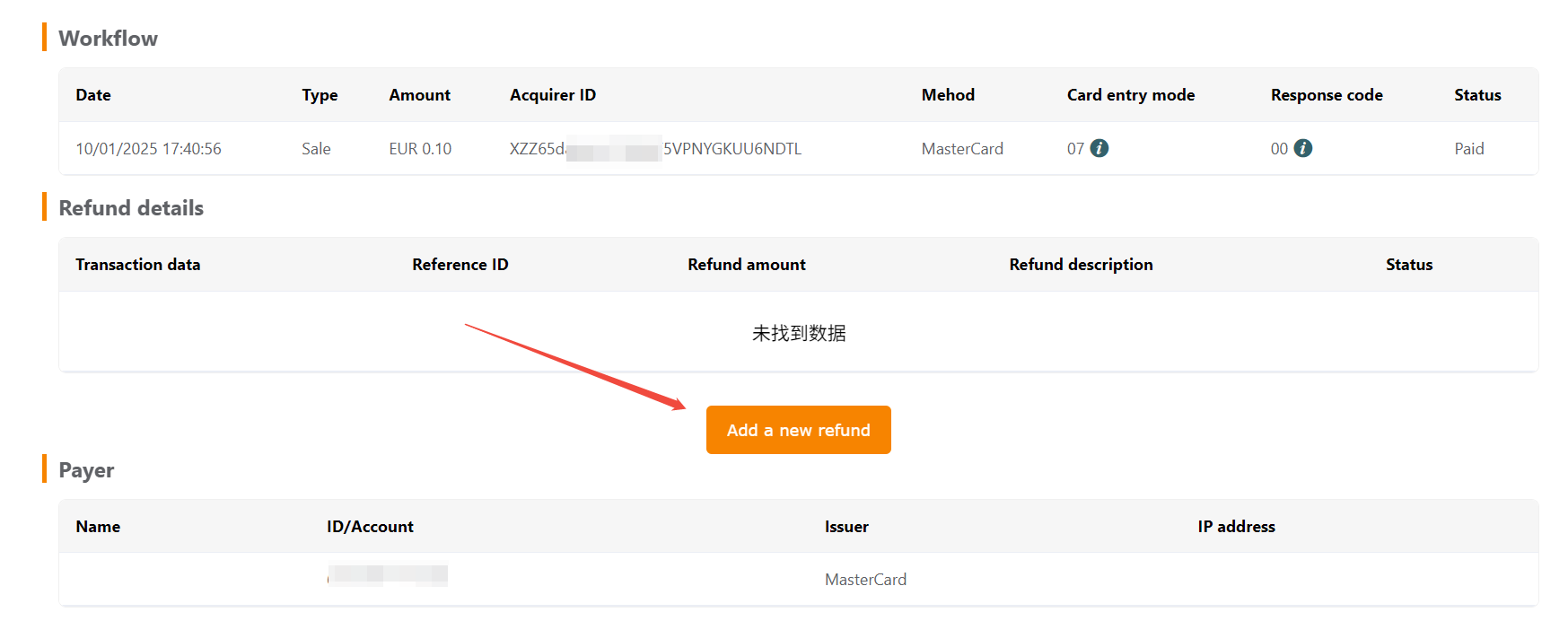
- Workflow: A record of actions performed on the order.
- Refund details: Refund information.
- Payer: Payer information.
- Card details: Card information is displayed for bank card payments, such as Visa, MasterCard, or UnionPay.
- Device informatoon: Information about the relevant device.
You can perform the following actions on the order details page:
- Generate a new payment link for an order with a “In Bearbeitung” status so that the customer can pay again.
- Download the order details as a PDF file.
- Initiate a refund request.