
YABANDPAY · DOCUMENTATION
Rückerstattungen
Veranlassen Sie vollständige oder teilweise Rückerstattungen, konfigurieren Sie Genehmigungsrechte und verfolgen Sie Rückerstattungsstatus sowie den Umgang mit unzureichendem Guthaben.
1. Rückerstattung veranlassen
Händler können über die Rückerstattungsverwaltung Rückzahlungen abwickeln, wenn eine Bestellung storniert oder eine Erstattung angefordert wird. Im YabandPay-Händlerportal oder in der App können Sie Rückerstattungen schnell veranlassen und ihren Status verfolgen.
Method 1: Rückerstattung im YabandPay-Händlerportal veranlassen
- Melden Sie sich im Händlerportal an und klicken Sie auf „Transaktionsverwaltung“ > „Zahlungsaufträge“.
- Suchen Sie die zu erstattende Bestellung und doppelklicken Sie darauf, um die Bestelldetails zu öffnen.
- Suchen Sie unten auf der Bestelldetailseite nach Neue Rückerstattung hinzufügen.
- Klicken Sie darauf, um die Rückerstattungsseite zu öffnen, und geben Sie Betrag und Grund der Rückerstattung ein.

Method 2: Rückerstattung in der YabandPay-App veranlassen
- Tap Details in the bottom menu of the app, select the order to refund, and open its transaction details.
- Tap Refund, enter the refund amount and reason, and submit. The system will then process the request.
Tipp
Tips:
- Rückerstattungen sind nur über die ursprüngliche Zahlungsmethode möglich. Die Mittel werden über den ursprünglichen Zahlungskanal des Kunden zurückerstattet.
- Vollständige und teilweise Rückerstattungen werden unterstützt, but the total amount refunded must not exceed the original payment amount.
- Transaktionen older than one year generally cannot be refunded.
- After a refund succeeds, the payer generally receives the returned funds within a few minutes to one month.
2. Refund Approval
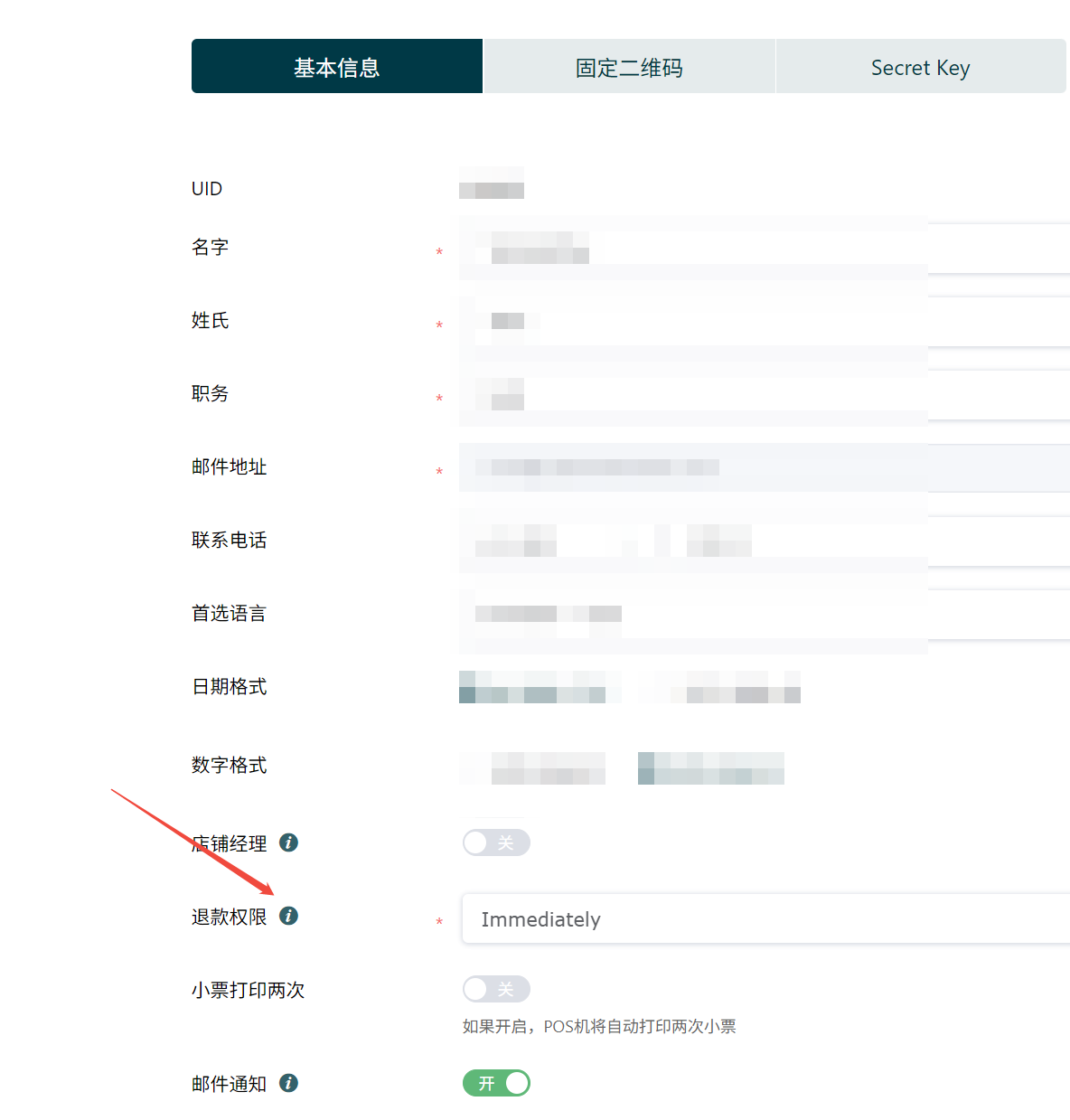
Refund Permission Einstellungen
YabandPay supports different refund permission levels for cashier accounts to strengthen access control and funds security. Permission types:
| Permission Level | Beschreibung |
|---|---|
| Genehmigt (approval required) | The cashier can submit refund requests, but an administrator or operations staff member must provide an additional approval. |
| Immediately (immediate refund) | The cashier can initiate refunds directly without approval. The refund request takes effect immediately. |
| Deaktiviert | The cashier cannot initiate any refund operation. |
Go to “Einstellungen” > “Filialverwaltung”, find the relevant cashier account, and change Refund Permission under Grundlegende Informationen.
Tipp
Tip:
To protect funds, newly created cashier accounts have “Genehmigt (approval required)” as their default refund permission.
Refund Approval
Refund status: To-be-approval, meaning approval is required.
After a refund requiring approval is submitted, the merchant’s administrator or operator must approve it.
You can approve requests under “Refund Orders”.
3. Finding Refund Orders and Tracking Their Status
Merchants can view and track all refund orders in real time through the YabandPay merchant portal to monitor progress and keep the refund process smooth and transparent.
Navigation
- Open “Transaktionsverwaltung” > “Refund Orders”.
- Filter refund records by criteria such as date range, order ID, or refund status.
- Click an order to view details, including:
- Original transaction information
- Refund amount
- Current status, such as refunded or awaiting approval
- Action time and the person who performed the action
Administratoristrators and operations staff can also review and approve refund requests with a “To-be-approval” status on this page.
This function gives merchants a complete view of refund processing, improves financial reconciliation efficiency, and reduces the customer support workload.
Refund Statuses
| Status | Beschreibung |
|---|---|
| To-be-approval | Awaiting approval. Only administrators and operations staff are authorized to approve the request. |
| Refund pending | The refund has been submitted, but the current account balance is insufficient. The system continues monitoring the balance and automatically resumes the refund once sufficient funds are available. |
| Refund processing | The refund request has been submitted, and the system is processing it with the payment channel. |
| Refunded | The refund has been completed successfully, and the funds have been returned to the cardholder’s account through the original payment method. |
| Refund failed | The refund failed. The merchant can retry based on the failure reason or contact the support team. |
| Refund error | An error occurred during system processing. Contact YabandPay customer support promptly. |
| Refund cancel | The refund request has been cancelled and will no longer be executed. |
4. Insufficient Balance for a Refund
When the refund amount exceeds the current day’s total transaction amount (Netherlands time) or the available balance in the merchant’s wallet, the refund is paused and the refund order status changes to Refund pending. Once the current day’s transaction amount increases sufficiently, the system automatically resumes the refund.
To speed up processing, you can also contact YabandPay to top up the balance so the refund can be completed promptly.