
YABANDPAY · DOCUMENTATION
Zahlungsaufträge
Sehen Sie Zahlungsaufträge, Zahlungsstatus und Details ein, erstellen Sie Zahlungslinks oder beantragen Sie Rückerstattungen.
Auf dieser Seite werden alle Zahlungsaufträge angezeigt, einschließlich bezahlter, in Bearbeitung befindlicher und unbezahlter Aufträge.
Tipp
Beachten Sie, dass per Karte über ein POS-Terminal bezahlte Bestellungen, etwa mit Visa, Mastercard oder UnionPay, im Bereich „POS“ angezeigt werden.
QR-Code-Zahlungen über ein POS-Terminal, beispielsweise mit WeChat Pay oder Alipay, werden weiterhin auf dieser Seite angezeigt.
1. Bestellliste
Auf der Seite „Zahlungsaufträge“ können Sie Aufträge nach verschiedenen Kriterien filtern und die Ergebnisse als Excel- oder CSV-Datumi exportieren.
The main fields are:
- Datum: Erstellungsdatum des Auftrags.
- Bestellbetrag: Verkaufspreis beziehungsweise angezeigter Preis.
- Zahlungsmethode: Für die Verarbeitung des Auftrags verwendete Zahlungsmethode.
- Bestell-ID/Beschreibung: Bestell-ID und Beschreibung.
- Filiale/Kassierer: Filiale und Kassiererkonto, bei denen die Zahlung eingeht.
- Status: Aktueller Bestellstatus.
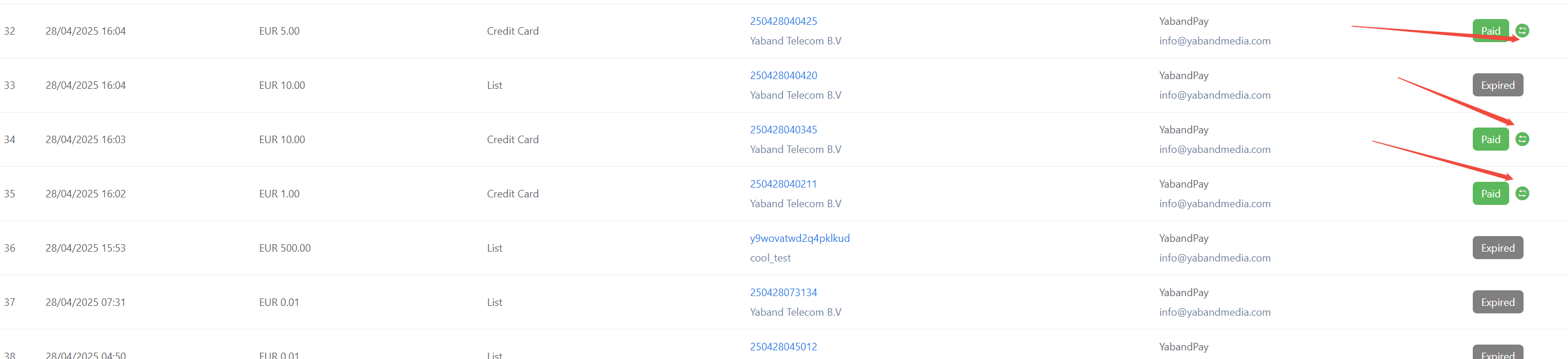
Das folgende Symbol zeigt an, dass eine Rückerstattung erfolgt ist. Weitere Informationen finden Sie in den Bestelldetails.
2. Bestellstatus
Eine Bestellung gilt nur dann als erfolgreich bezahlt, wenn ihr Status Paid lautet. Alle anderen Status zeigen an, dass die Zahlung noch nicht erfolgt ist oder has not yet been completed.
| Status | Beschreibung |
|---|---|
| Bezahlt | The order has been successfully paid. |
| In Bearbeitung | Waiting for the customer to complete payment. |
| Cancelled | The customer has not paid, and the order has been cancelled. |
| Expired | The customer has not paid, and the order has expired. |
| Verify | The customer has paid, and the order is undergoing a risk review. |
Tipp
About the “Verify” status
The review is usually completed within one business day.
- If the order does not pass the review, its status changes to Cancelled, and the system refunds the payment to the original payment method.
- If the order passes the review, its status changes to Bezahlt.
3. Order Details
Double-click any order to open its details and view the complete transaction information, including:
- Datum created: The time the order was created.
- Datum completed: The time the order was last updated.
- Gross amount: The order amount in the settlement currency. If the order currency and settlement currency are the same, the amounts are the same. Note: The initial amount for credit card orders is 0. The accurate amount is displayed on the day after clearing is completed.
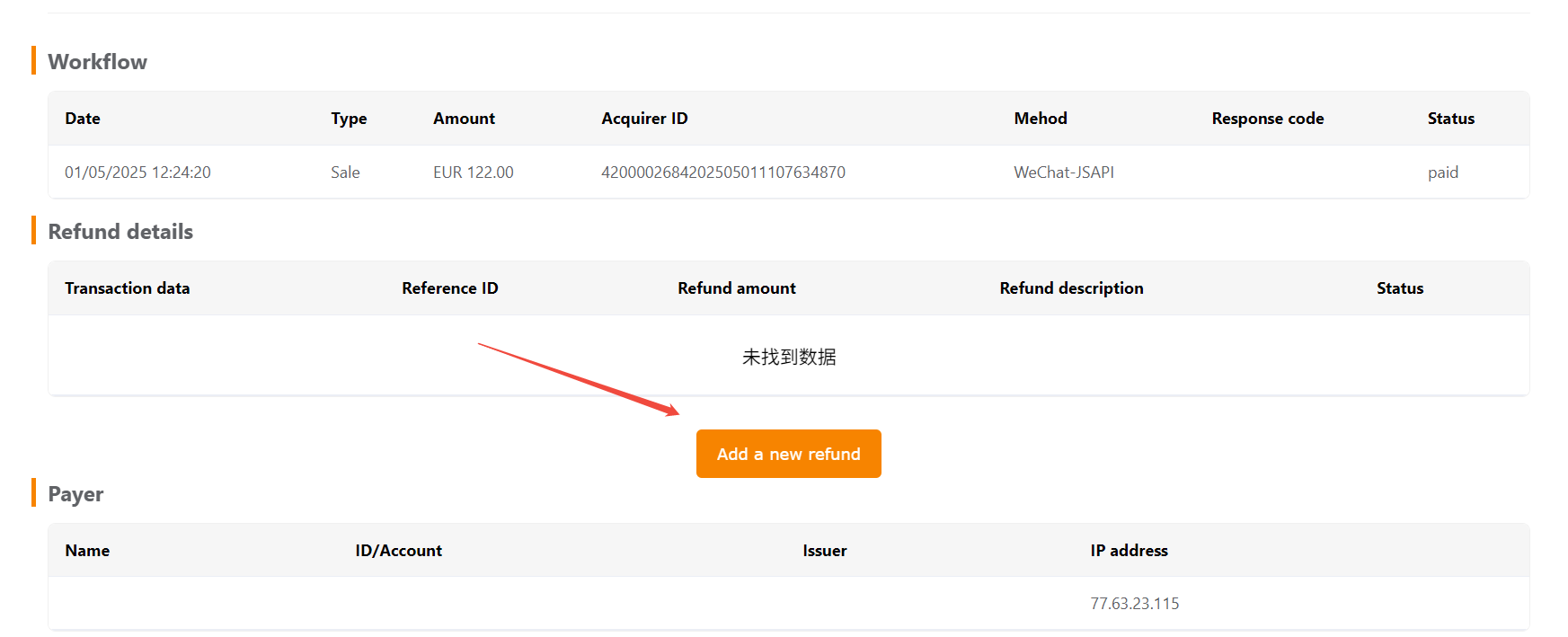
- Workflow: A record of actions performed on the order.
- Refund details: Refund information.
- Payer: Payer information.
- Card details: Card information is displayed for bank card payments, such as Visa, MasterCard, or UnionPay.
- Device informatoon: Information about the relevant device.
You can perform the following actions on the order details page:
- Generate a new payment link for an order with a “In Bearbeitung” status so that the customer can pay again.
- Download the order details as a PDF file.
- Initiate a refund request.
4. Filters, fees and transaction notifications
Filter payment orders by date, currency, status, payment method, order ID, order amount and description, and download the results as an Excel or CSV file.
Order fees are not shown on the payment orders page. To view fees or all successful transactions, open Finanzen > Transaktionsdetails.
To receive notifications for each successful payment or refund, open Einstellungen > Benachrichtigungseinstellungen and enter the recipient email address under payment transaction notifications.